How to Avoid Tolls in Apple Maps on iPhone
Apple Maps picks the fastest route, and the fastest route often runs over a toll road, through a toll tunnel or across a toll bridge. If you'd rather not pay, you can tell Maps to leave toll roads out. It takes a few taps, and you can do it right from the route.
Get driving directions in Apple Maps, tap Time and Options under "Directions", switch on Tolls under Avoid and tap ✓. Maps keeps avoiding tolls on later trips too. You'll find the same switch in Settings → Apps → Maps → Driving.
Avoid tolls from the route
- In Apple Maps, search for where you're going and tap Directions (or tap Home or Work if you've saved them).
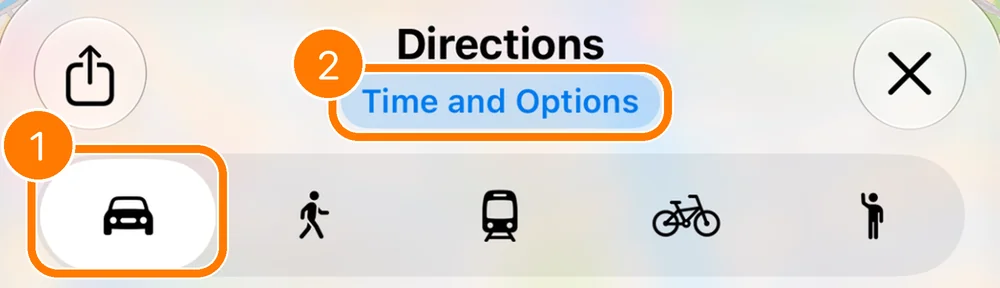
- Make sure the car is selected (1). Under "Directions" you then see Time and Options (2). Tap it.
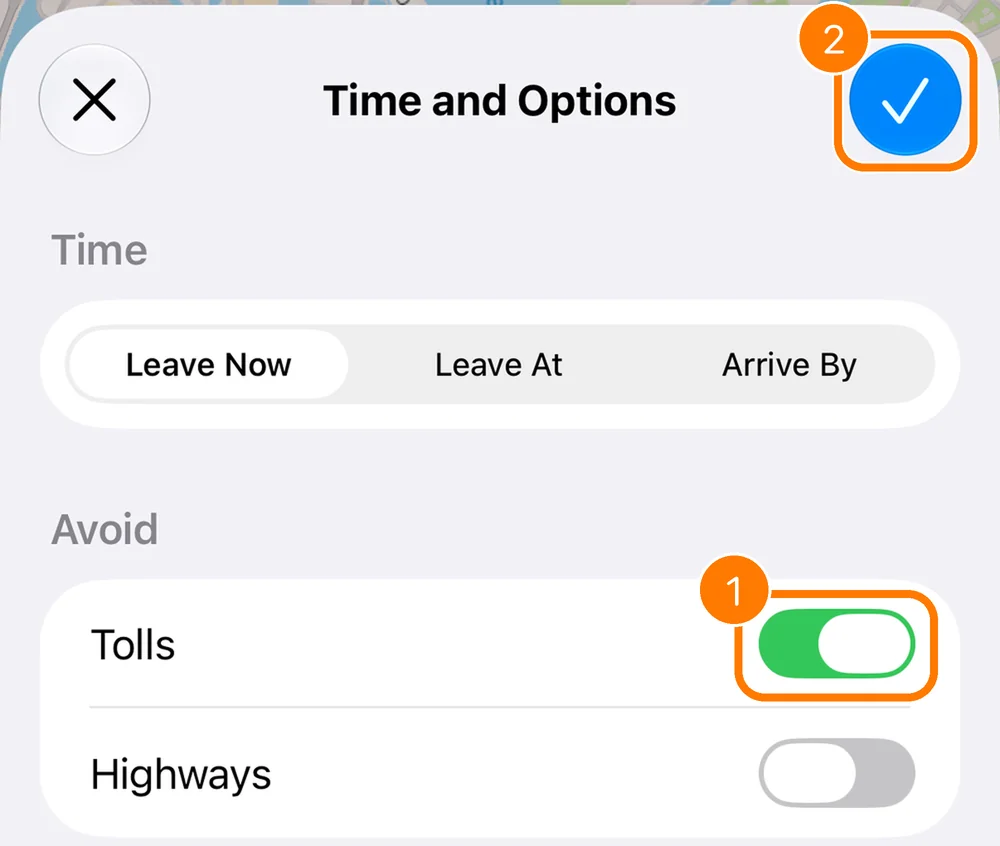
- Under Avoid, switch on Tolls (1). Switch on Highways as well if you want to stay off motorways.
- Tap ✓ at the top right (2).
Maps works out the route again. Under "Directions" it now says Avoid Tolls, so you can see at a glance that the setting is on.
The same screen also has Leave At and Arrive By, which is handy for checking how long a drive will take at rush hour before you go.
Does Maps remember it?
Yes. In our test, switching on Tolls from a route also switched it on in Settings: it's one setting, so later trips avoid tolls too until you switch it off.
Avoid tolls on every trip from Settings
You can also set it without planning a route:
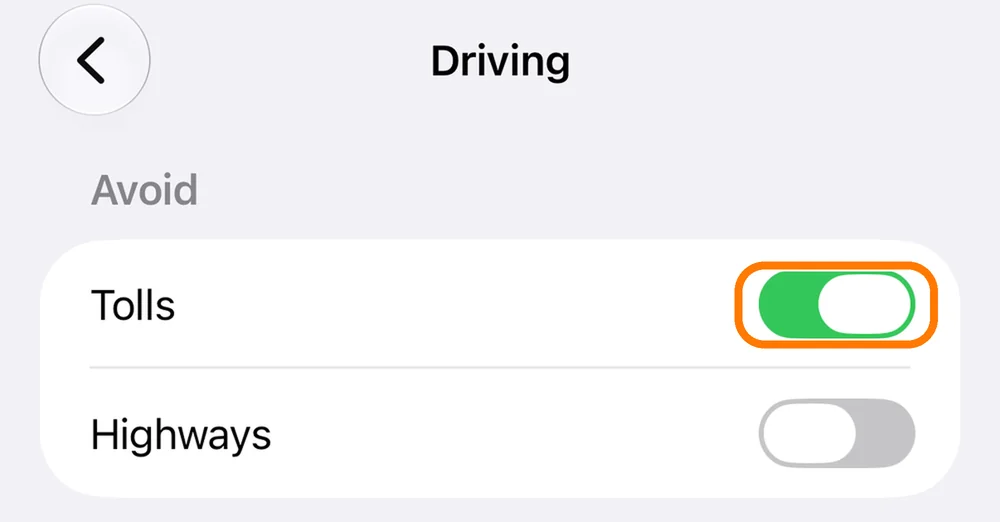
- Open Settings and tap Apps, then Maps.
- Under Directions, tap Driving.
- Under Avoid, switch on Tolls (and Highways if you like).
How to use toll roads again
Switch Tolls off in either place: in Time and Options on a route (the screen also has a Reset button that clears your choices), or in Settings → Apps → Maps → Driving. On a long trip the toll road can save a lot of time, so it's worth comparing both routes now and then.
Why a route might still use a toll road
Maps can only avoid a toll road if there's another road that gets you there. A toll bridge or tunnel across water sometimes has no free alternative nearby, or only a very long one. Before a long drive, tap Steps on the route card and scroll through the list if you want to be sure.
Want a bigger screen in the car?
Car & Play, our app, turns your iPhone into a car dashboard: mount it sideways, tap Start Car Mode and you get a large map with spoken directions next to the weather, and your music and calls with Pro. It works in any car, with or without CarPlay. Note that its map plans its own routes and doesn't use the Avoid Tolls setting from Apple Maps; for a toll-free route, use Apple Maps as described above. More in our guide to using your iPhone as a car screen.
Frequently asked questions
Where is the "avoid tolls" option in Apple Maps?
On a driving route, tap Time and Options under "Directions". Or go to Settings → Apps → Maps → Driving. Both switch the same setting.
Can I avoid motorways in Apple Maps too?
Yes. Next to Tolls there's a Highways switch. Turn it on to keep Maps off motorways and other highways.
Does avoiding tolls make the trip longer?
Often a little, sometimes a lot. Maps shows the travel time for the new route, so you can compare it with the toll route before you set off.
How do I know the setting is on?
On a driving route, the button under "Directions" reads Avoid Tolls instead of Time and Options.
Keep reading
 Apple Maps
How to Set Your Home Address in Apple Maps on iPhone
Save Home and Work in Apple Maps so directions are one tap away, see your travel time at a glance, and change or remove an address that's wrong.
Read guide →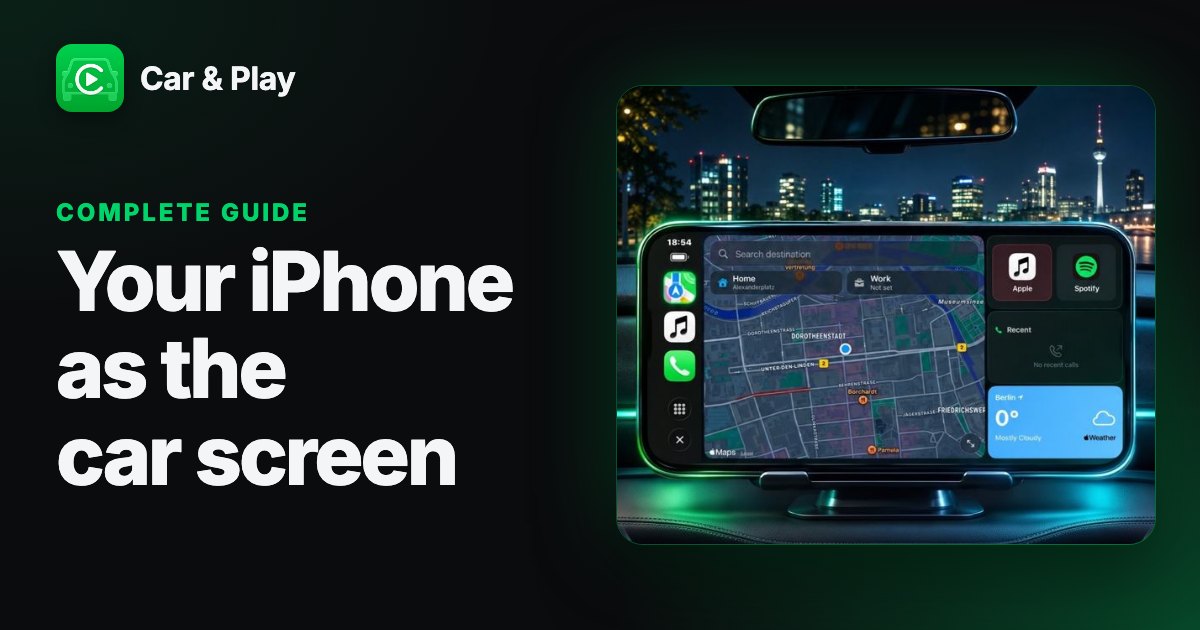 Complete guide
How to Use Your iPhone as a Car Screen (No CarPlay Needed)
No CarPlay in your car? Turn your iPhone into a dashboard with a big map, music and calls. What you need, the free way and the easiest app.
Read guide →
Your iPhone can be the car screen
Car & Play puts maps, music, calls and radio on one big dashboard, in any car. No account needed.