How to Set Your Home Address in Apple Maps on iPhone
If you type your own address into Apple Maps every time you want to go home, there's a quicker way. Save it once as Home, and from then on a single tap gives you the route and the travel time. Work goes the same way. It also helps if you moved and Maps still sends you to your old address.
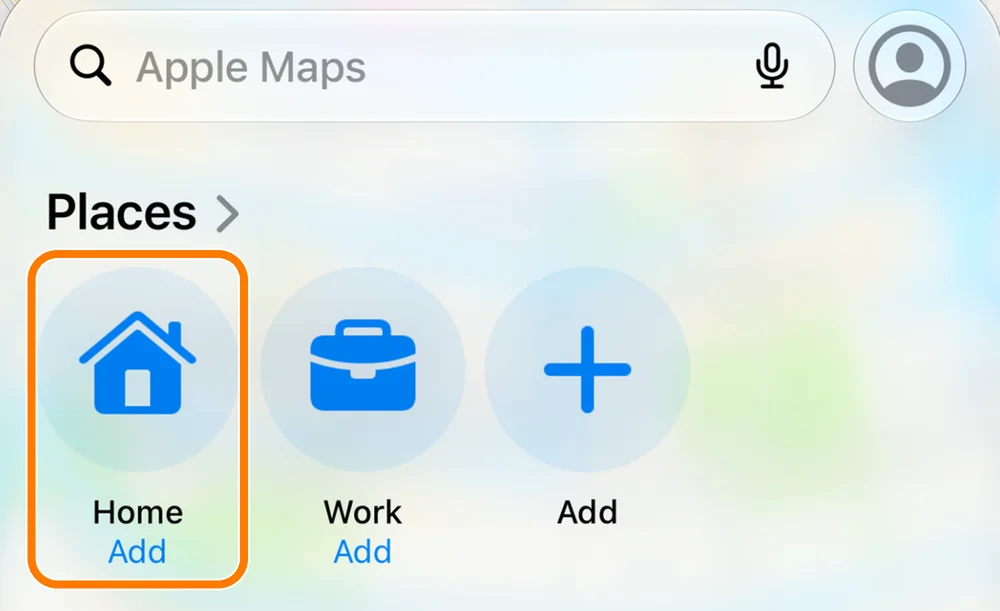
Open Maps, find Places in the card at the bottom and tap Home (it says "Add" under it). Search for your address, tap it, check the details and tap ✓. To change it later, touch and hold Home and choose Edit Details.
How to add your home address
- Open Maps. In the card at the bottom, under Places, tap Home.
- "Set up Home" opens with a search box. Type your street and house number, then tap your address in the results.
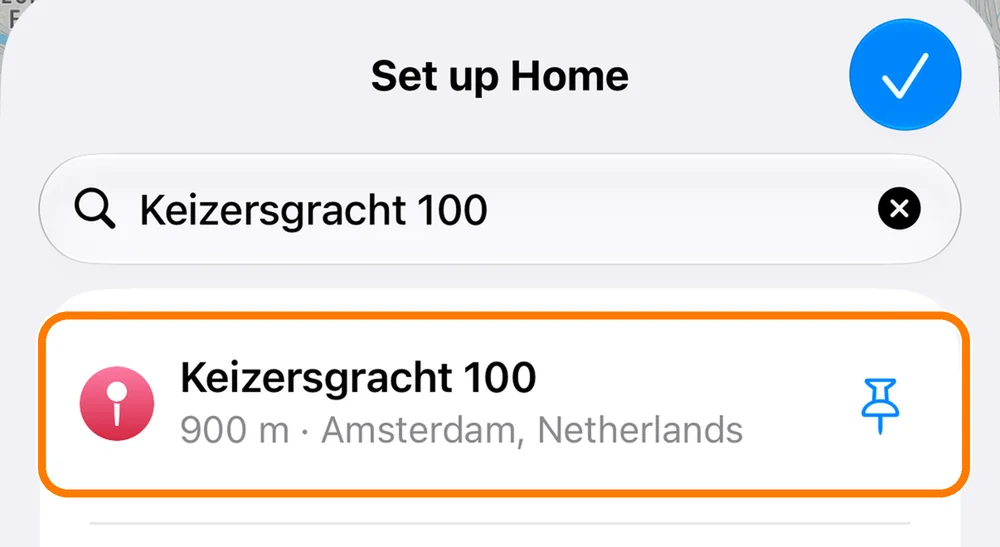
Check the town: the same street name often exists in more than one place. Each result shows the distance from where you are and the town.
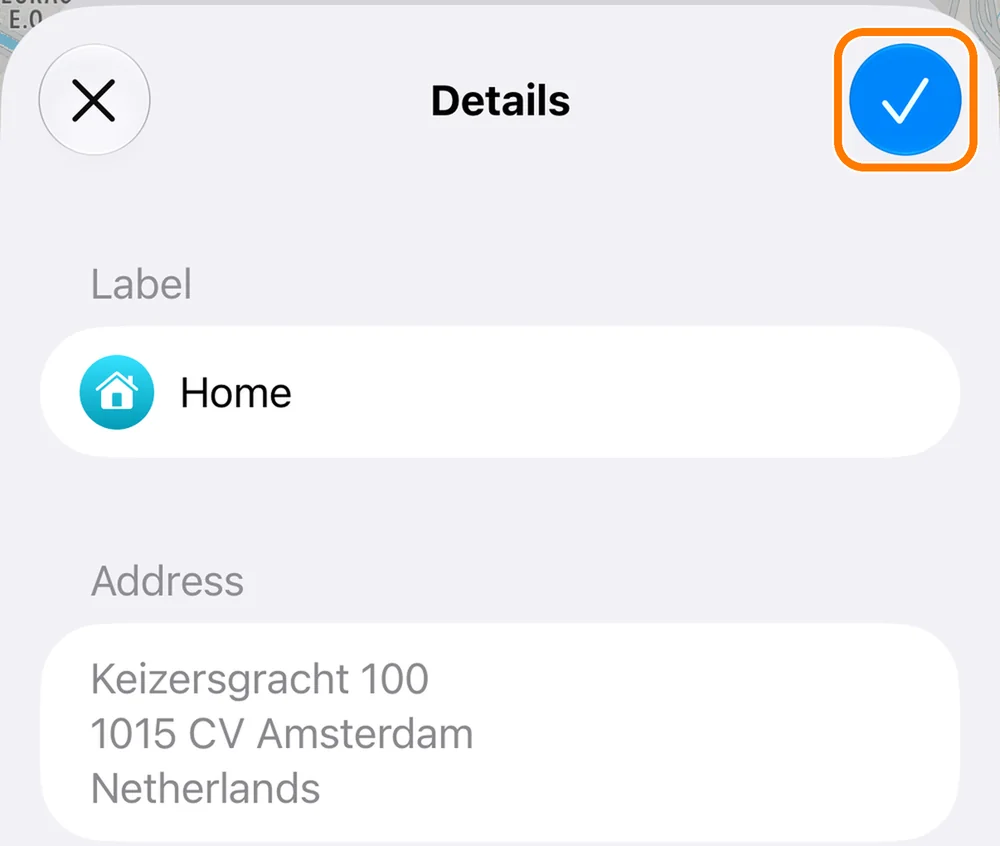
- The Details screen shows the label (Home), the full address and the type. If it's right, tap ✓ at the top right.
That's it. Home now has your travel time (or, at times, the distance) under it instead of "Add". Don't be surprised if it moves: in our test, Home moved to the second spot, after Work.
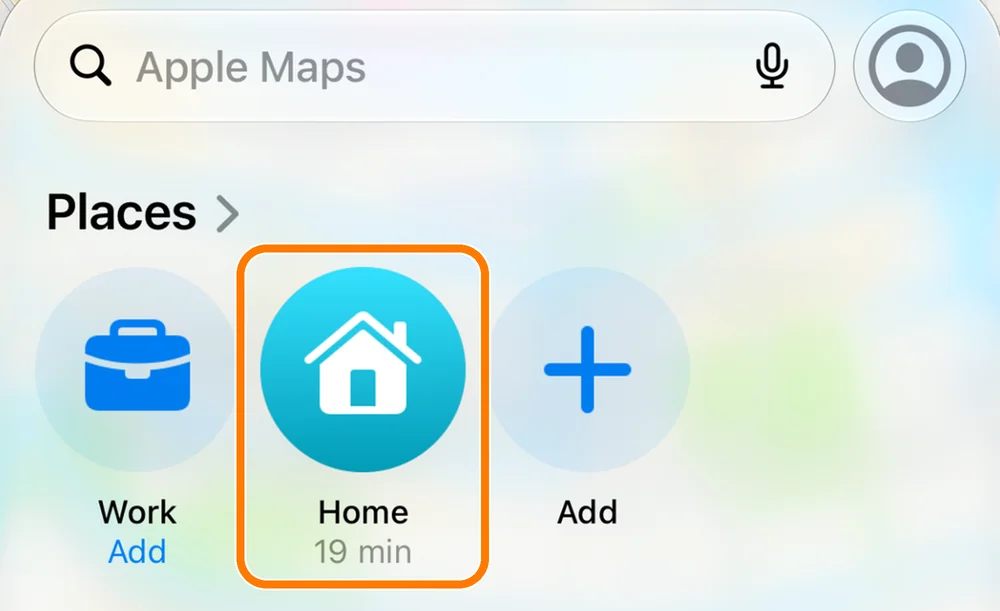
Tap Home any time and Maps opens directions straight away. Siri can use it too: say "Take me home". Add your work address the same way with Work, and use Add for other places you go often, like school or the gym.
Show driving time instead of walking time
The time under Home is for your preferred way of travelling. If it shows a walking time but you mostly drive, change it:
- Open Settings, tap Apps, then Maps.
- Under Preferred Type of Travel, tap Driving.
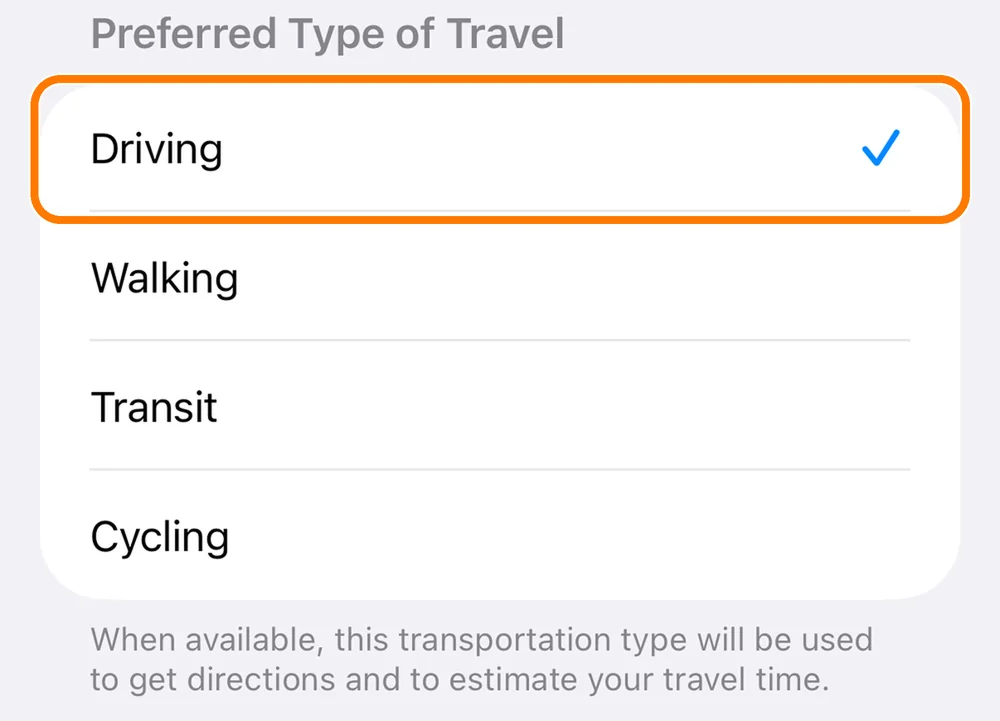
Maps then uses driving for directions and travel times when it can. While you're on that Maps settings page: under Directions → Driving you can also avoid toll roads.
How to change or remove your home address
- In Maps, touch and hold Home under Places. A small menu appears.
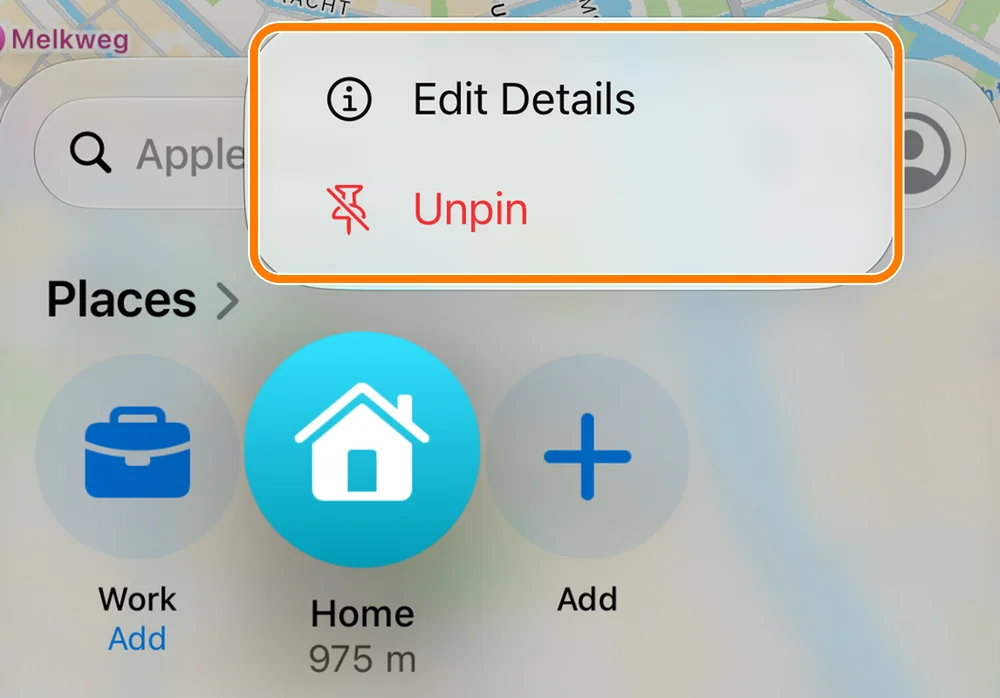
- Moved house? Tap Unpin to remove the old address, then tap Home again and add the new one as described above.
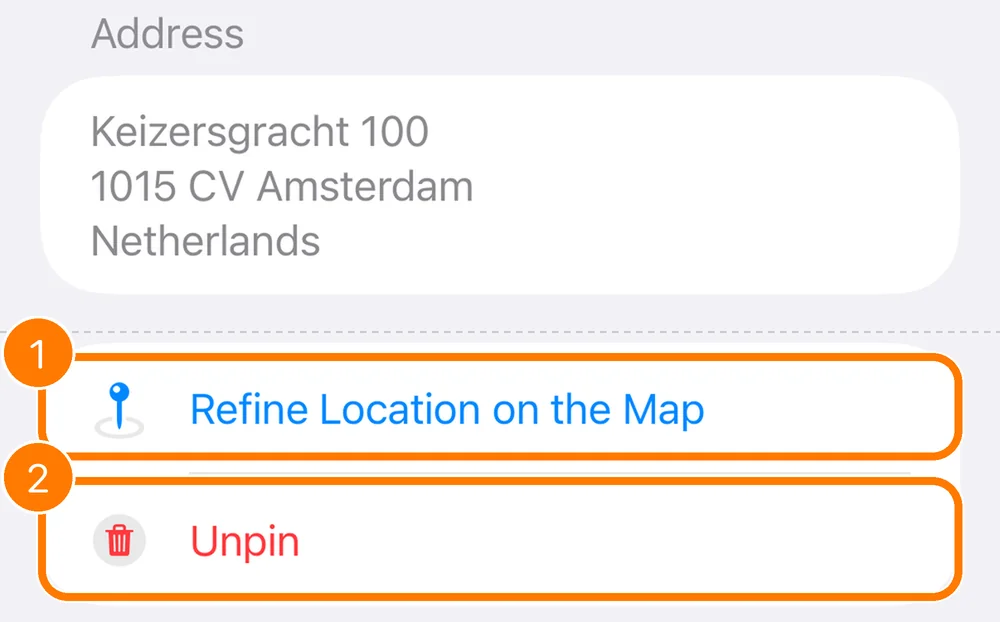
- Pin in the wrong spot, say the wrong side of the street? Tap Edit Details instead, then Refine Location on the Map (1). Unpin (2) is there too.
Home in the car, one tap away
Saved places matter most when you're behind the wheel and shouldn't be typing. Car & Play, our app, turns your iPhone into a car dashboard with a big map, music, calls and weather on one landscape screen, and it has its own Home and Work buttons right on the map. Save them in the app once (they're separate from Apple Maps), and starting the drive home is a single tap. More in our guide to using your iPhone as a car screen.
Frequently asked questions
Why does Apple Maps show my old home address?
Maps keeps the address you saved, or the one on your own contact card. Touch and hold Home, tap Unpin, then add your new address.
How do I add a work address in Apple Maps?
Exactly like Home: tap Work under Places, search for the address, tap it and tap ✓.
Can I save more places than Home and Work?
Yes. Tap Add under Places to save other addresses you go to often.
Why does Home show minutes on foot?
The time uses your preferred type of travel. Change it to Driving in Settings → Apps → Maps → Preferred Type of Travel.
Keep reading
 Apple Maps
How to Avoid Tolls in Apple Maps on iPhone
Make Apple Maps skip toll roads (and motorways if you like) on your iPhone, for one trip or every trip, and how to switch it back off.
Read guide →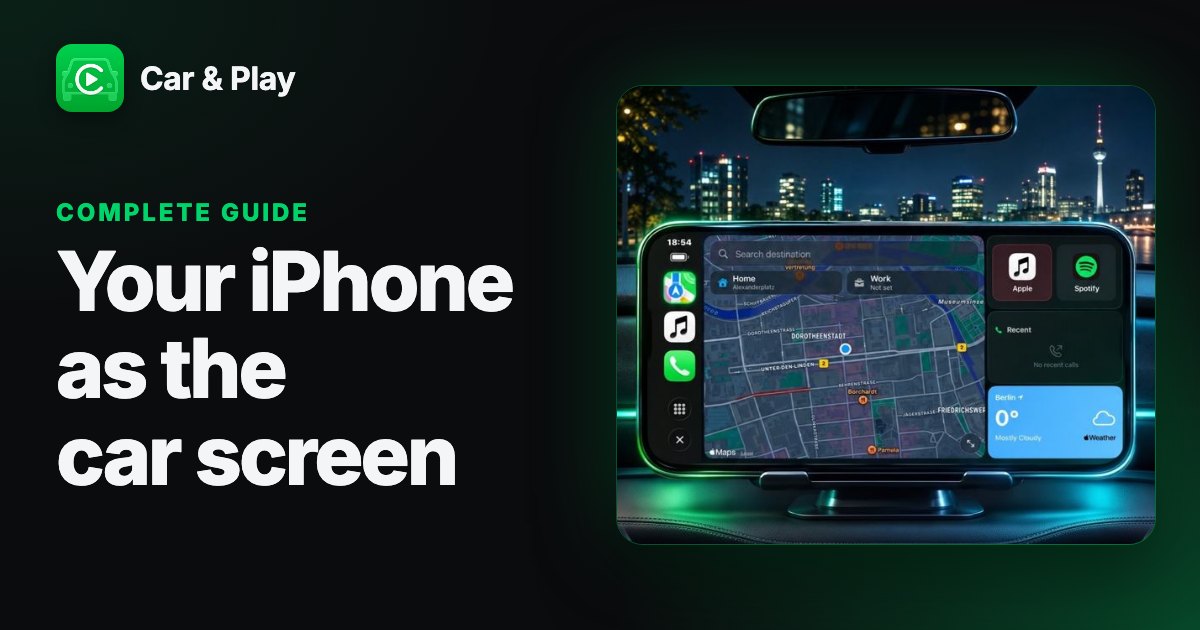 Complete guide
How to Use Your iPhone as a Car Screen (No CarPlay Needed)
No CarPlay in your car? Turn your iPhone into a dashboard with a big map, music and calls. What you need, the free way and the easiest app.
Read guide →
Your iPhone can be the car screen
Car & Play puts maps, music, calls and radio on one big dashboard, in any car. No account needed.